

Mastering LinkedIn Image Sizes: The Ultimate Guide for 2024

Ever wonder why some LinkedIn profiles catch your eye while others don’t? The key is in the visuals. From profile pictures to cover images, every visual element on LinkedIn matters for making a strong impression. But, LinkedIn’s image size requirements can be tricky. Wrong sizes can lead to cropped or blurry images, damaging your professional look.
Don’t worry! This guide will help you nail LinkedIn image sizes, from profile pics to company logos. We’ll share tips for stunning visuals and tools to make it easy. By the end, you’ll know how to make your LinkedIn profile pop. Let’s get started!
Understanding LinkedIn Image Types
LinkedIn offers various image types to enhance your professional profile and company presence. Let’s explore the key image types and their importance:
A. Profile Picture
Your LinkedIn profile picture is often the first impression you make on potential connections and employers. It’s crucial to choose a high-quality, professional image that represents you well.
- Recommended size: 400 x 400 pixels
- File format: JPG, PNG, or GIF
- Maximum file size: 8MB
B. Background/Cover Image
The cover image, also known as the background image, appears at the top of your LinkedIn profile and provides an opportunity to showcase your personal brand or professional interests.
- Recommended size: 1584 x 396 pixels
- File format: JPG, PNG, or GIF
- Maximum file size: 8MB
C. Company Logo
For businesses, the company logo is a Important element of brand identity on LinkedIn. It appears on your company page and in search results.
- Standard logo size: 300 x 300 pixels
- File format: JPG or PNG
- Maximum file size: 8MB
D. Background/Cover Image
The background photo is another opportunity to personalize your profile and make it eye-catching. It appears behind your profile information and can be used to showcase your industry, skills, or achievements.
- Standard logo size: 1128 x 191 pixels
- File format: JPG, PNG, or GIF
- Maximum file size: 8MB
Understanding these image types and their specifications is Important for creating a polished and professional LinkedIn presence. In the next section, we’ll dive deeper into optimizing your LinkedIn profile picture to make the best first impression.
Optimizing Your LinkedIn Profile Picture
Your LinkedIn profile picture is often the first impression you make on potential connections, employers, or clients. Let’s dive into how you can optimize your profile picture to make a lasting impact.
Professional Appearance Guidelines
When selecting your LinkedIn profile picture, consider the following guidelines:
- Dress professionally, appropriate for your industry
- Maintain a friendly, approachable expression
- Ensure good lighting
- Use a simple solid color background or office background
- Keep the focus on your face, avoiding distracting elements
Framing and Composition Tips
Proper framing and composition can significantly enhance your profile picture:
- Center yourself in the frame
- Use the rule of thirds for a balanced composition
- Crop the image to show your head and shoulders
- Maintain eye contact with the camera
- Avoid using filters or heavy editing
|
Do's |
Don'ts |
Use a recent photo |
Use old or outdated photos |
|---|---|
|
Smile naturally |
Make exaggerated expressions |
|
Choose a simple background |
Use busy or distracting backgrounds |
|
Wear solid colors |
Wear patterns or loud prints |
Pro tip: Upload a larger photo (eg, 1000 x 1000 pixels) for a higher resolution display to make your profile picture stand out.
By following these guidelines, you’ll create a professional and engaging LinkedIn profile picture that makes a strong first impression. Next, we’ll explore how to create an impressive background photo to complement your optimized profile picture.
Creating an Impressive Cover Photo
Your LinkedIn background photo or cover photo is a powerful tool for personal branding and making a strong first impression. Let’s explore how to create an eye-catching background banner or cover photo that enhances your profile.
Avoiding Common Mistakes
When designing your LinkedIn background photo, steer clear of these common mistakes:
- Overcrowding the image with text
- Using low-resolution pictures
- Choosing irrelevant or unprofessional imagery
- Ignore the mobile view
Content Ideas for Maximum Impact
To make your background photo truly stand out, consider these impactful ideas:
- Showcase your work environment or industry
- Highlight your achievements or awards
- Display your personal brand colors and logo
- Feature a cityscape or landscape relevant to your location or aspirations
Ideal Dimensions
For optimal display across devices, follow these LinkedIn background photo dimensions:
|
Device |
Dimensions |
Safe Area |
Desktop |
1584 x 396 px |
1120 x 296 px |
|---|---|---|
|
Mobile |
1584 x 396 px |
885 x 296 px |
Pro tip: Use the “safe area” of 1120 x 296px larger devices and 885 x 296px for smart devices in the right said of your image to ensure critical elements are visible on all devices.
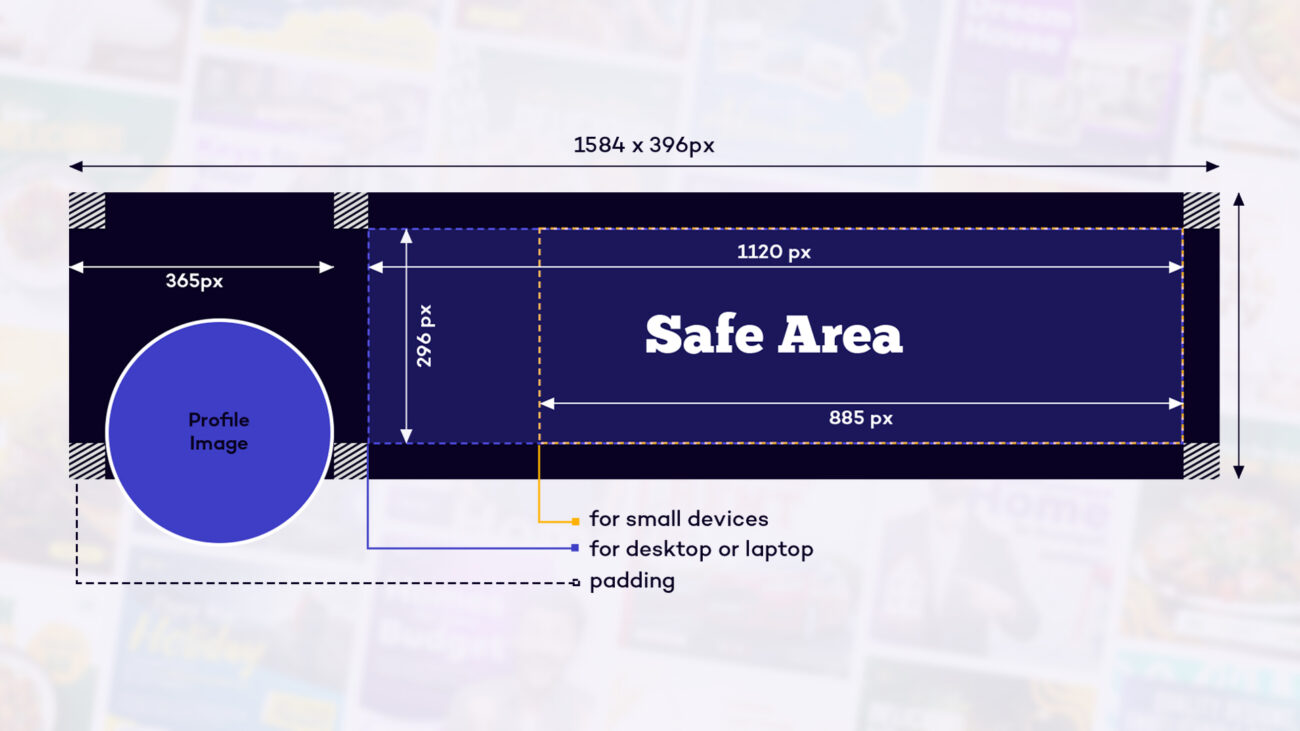
Now that you understand how to create an impressive background photo, let’s move on to designing effective company logos for your LinkedIn presence.
Designing Effective Company Logos
Now that we’ve covered optimizing your profile picture and creating an impressive background photo, let’s focus on designing effective company logos for LinkedIn business page. A well-designed logo is most important for establishing your brand identity and making a lasting impression on potential clients and partners.
Branding Consistency
Maintaining branding consistency across all platforms is essential for creating a strong and recognizable brand identity. Your LinkedIn company logo should align with your overall brand guidelines, including color scheme, typography, and style. This consistency helps in building trust and credibility with your audience.
Visibility Across Devices
When designing your company logo for LinkedIn, consider how it will appear on various devices, from desktop computers to mobile phones. A logo that looks great on a large screen may lose its impact when viewed on a smaller device. Here are some tips to ensure optimal visibility:
- Keep the design simple
- Use bold, clean lines
- Avoid intricate details that may not be visible at smaller sizes
- Test your logo on different screen sizes before finalizing
To ensure your logo looks its best on LinkedIn:
- Design your logo at a larger size, then scale it down to meet the requirements
- Use vector graphics when possible for scalability
- Save your logo in high resolution
- Test the logo at different sizes to ensure readability
By following these guidelines for branding consistency, visibility across devices, and size requirements, you’ll create an effective company logo that represents your brand well on LinkedIn. Next, we’ll explore how to master LinkedIn cover images to further enhance your company’s visual presence on the platform.
Professional LinkedIn Cover Images
LinkedIn cover images are a powerful tool for personal branding and company promotion. To make the most of this prime visual real estate, consider the following best practices and strategies.
Text Overlay Best Practices
When adding text to your LinkedIn cover image, keep these guidelines in mind:
- Use short, impactful messaging
- Ensure high contrast between text and background
- Stick to 1-2 fonts maximum
- Place text within the “safe area” to avoid cropping
Remember to test your cover image across different devices to ensure it looks great on desktop and mobile. With these strategies in mind, you’ll be well-equipped to create stunning LinkedIn cover images that effectively represent your brand and capture attention. Next, we’ll explore some useful tools and resources to help you create and optimize your LinkedIn images.
Tools and Resources
Now that we’ve covered the various image types and their optimal sizes for LinkedIn, let’s explore some tools and resources to help you create and resize your images effectively.
Professional Design Software Options
For those seeking advanced features and precise control over their LinkedIn images, professional design software can be invaluable. Here are some popular options:
- Adobe Photoshop
- Adobe Illustrator
- Adobe Express
- Canva
These tools offer:
- Advanced editing capabilities
- Preset templates for LinkedIn images
- High-quality export options
Free Templates
Q: How to Use the Templates?
- Download the desired template(s)
- Open the template in editing software (Adobe Photoshop or Adobe illustrator)
- Replace the placeholder content with your own images
- Adjust and refine as needed
- Save and upload to your LinkedIn profile or company page
Optimize Your LinkedIn Profile with My Templates
Enhance your LinkedIn presence with my crafted image templates designed specifically for LinkedIn’s platform.
Each template includes clear guidelines for the safe area, ensuring your images are perfectly aligned and optimized, avoiding any cropping or distortion.
Whether you’re working on profile pictures, banners, or company logos, these templates will help you maintain a professional and polished appearance.